Do you want to create a nice presentation? Canva and Google Slides are two easy tools to help you. Canva has many ready-made templates. Google Slides helps you show your ideas. But how do you use a Canva template in Google Slides? This guide will show you simple steps. You will learn to move your design from Canva to Google Slides. Let’s start!
What Are Canva and Google Slides?
Canva is a website where you can make pictures and slides. It has many templates. Templates are ready designs. You just add your words and pictures. It helps you save time.
Google Slides is a tool to make presentations. You can add text, pictures, and videos. You can share your slides with friends or teachers. It works online, so you don’t need to download anything.
Why Use Canva Templates in Google Slides?
- Canva templates look nice and are easy to use.
- Google Slides lets you show your work to others.
- Combining both tools makes your presentation better.
- You get more design options with Canva.
- Google Slides helps you work with groups.
So, using Canva templates in Google Slides is smart and simple.
Step 1: Choose Your Canva Template
First, go to the Canva website at www.canva.com. You can make a free account if you do not have one.
Next, search for “presentation templates.” You will see many designs. Look for one that you like. Click on it to open the template.
You can change the text and images inside Canva. But if you want to use it in Google Slides, you need to download it.
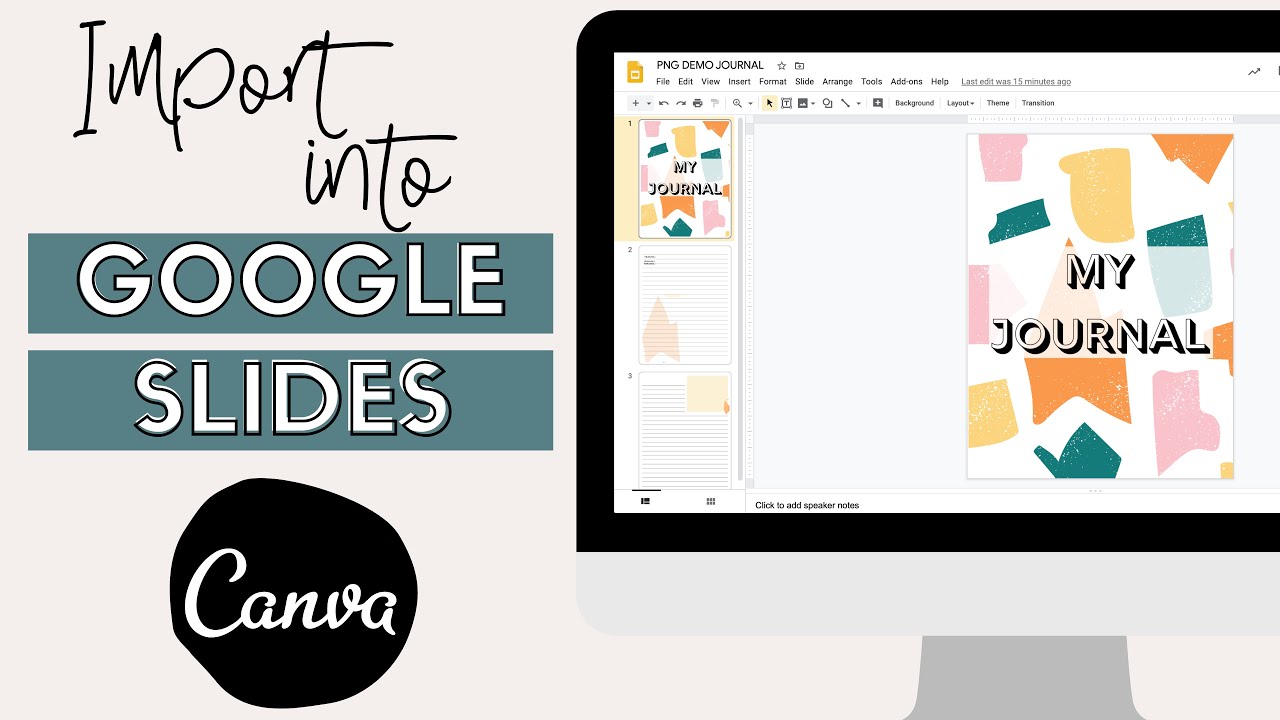
Credit: www.youtube.com
Step 2: Download Your Canva Template
After you finish editing the template, click on the Download button at the top right of the screen.
Canva lets you choose the file type. To use in Google Slides, choose PNG or JPEG. These are picture files.
Download each slide as a separate image. If your presentation has many slides, download all images.
This step saves your Canva design on your computer.
Credit: magicul.io
Step 3: Open Google Slides
Now, go to Google Slides. Sign in with your Google account.
Click on Blank to create a new presentation. You will see a new slide with space for text.
Step 4: Insert Canva Images into Google Slides
Next, you will add Canva images to your Google Slides.
- Click on Insert in the top menu.
- Choose Image and then Upload from computer.
- Find the Canva image you downloaded.
- Select the image and click Open.
The image will appear on your slide. Resize it by dragging the corners. Move it to fit the slide.
Do this for each slide image from Canva. Add one image per slide in Google Slides.
Step 5: Add Text or Other Items in Google Slides
Canva images are pictures. You cannot change the text inside the image in Google Slides.
If you want to add more text, do this:
- Click Insert and then Text box.
- Click on the slide where you want to add words.
- Type your text.
- You can change the font, size, and color.
You can also add shapes, lines, or videos using Google Slides tools.
Step 6: Save and Share Your Google Slides Presentation
Google Slides saves your work automatically. You do not need to press save.
To share your presentation:
- Click the Share button at the top right.
- Enter email addresses of people you want to share with.
- Choose if they can view or edit.
- Click Send.
You can also download your Google Slides as a PDF or PowerPoint file.
Tips for Using Canva Templates in Google Slides
- Keep your slides simple and clear.
- Use large fonts for easy reading.
- Do not put too many words on one slide.
- Use pictures to explain your ideas.
- Practice your presentation before showing it.
Common Mistakes to Avoid
| Common Mistake | How to Fix |
|---|---|
| Using low-quality images | Download high-resolution images from Canva |
| Not resizing images properly | Adjust image size to fit the slide well |
| Adding too much text on slides | Keep text short and clear |
| Not saving your work | Google Slides saves automatically; still check |
Other Ways to Use Canva and Google Slides Together
Besides images, you can export Canva slides as PDF. Then upload PDF pages to Google Slides. But this can be harder to edit.
You can also use Canva to create logos or icons. Then add them to Google Slides presentations.
Try different designs. Make your slides look unique. The more you practice, the easier it gets.
Summary
Using Canva templates in Google Slides is easy. First, find a template on Canva. Edit and download it as images. Open Google Slides and create a new presentation. Upload the Canva images to each slide. Add extra text or shapes if needed. Save and share your work with others.
This method helps you make good presentations. It combines Canva’s beautiful designs with Google Slides’ easy sharing. Now you can create presentations that look good and are easy to make.
Start today! Find a Canva template and try these steps. You will soon make great presentations for school or work.
Frequently Asked Questions
How Do I Import A Canva Template Into Google Slides?
Download the Canva design as a PNG or JPG, then insert it as an image in Google Slides.
Can I Edit Canva Templates Directly In Google Slides?
No, Canva templates are images in Google Slides and can’t be edited like native slides.
What File Format Should I Use From Canva For Google Slides?
Use PNG or JPG files for best compatibility and quality in Google Slides.
Is It Possible To Keep Canva Animations In Google Slides?
No, animations from Canva do not transfer to Google Slides with templates.