Canvas is a popular online learning tool. Many schools and teachers use it. It helps students learn and do schoolwork online. If you are new to Canvas, this guide will help you. It will show simple steps to use Canvas.
What is Canvas?
Canvas is a website where teachers share lessons, homework, and grades. It is easy to use. Students log in to see their classes. They can send messages to teachers. They can also turn in homework through Canvas.
Why Do Students Use Canvas?
- To see class materials like notes and videos.
- To check homework and assignments.
- To submit homework online.
- To talk with teachers and classmates.
- To check grades and feedback.
How to Log In to Canvas
First, you need to go to your school’s Canvas website. Usually, the teacher or school gives you the web address. It looks like schoolname.instructure.com.
Next, type your username and password. This is given by your school. If you forget your password, use the “Forgot Password” link. Follow the steps to get a new one.
After you log in, you will see your Canvas dashboard. This is the main page where you find your classes.
Understanding the Canvas Dashboard
The dashboard is simple. It shows all your current classes. Each class is a box with the class name and teacher.
You can click on a class box to open it. Inside, you will find assignments, grades, and announcements.
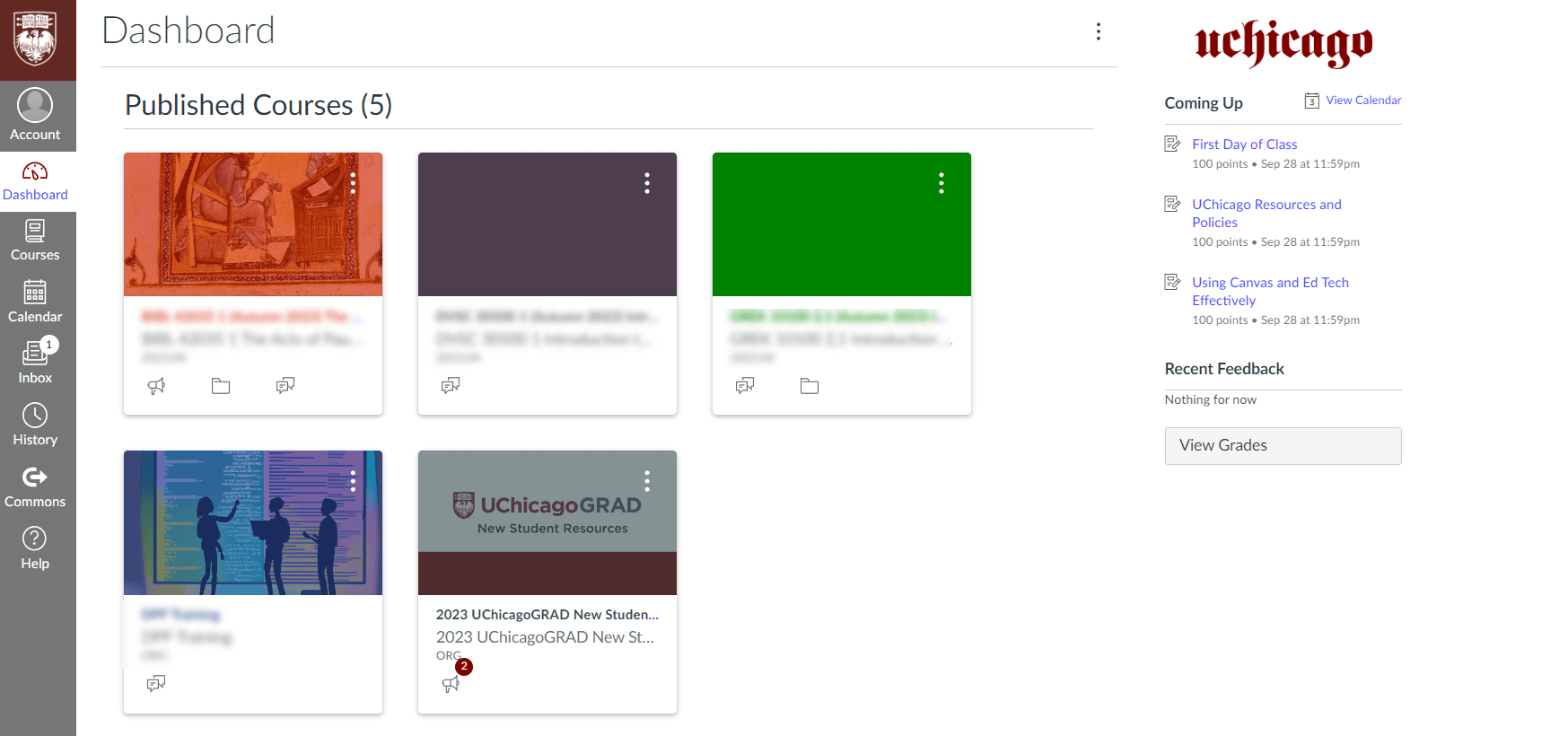
Credit: academictech.uchicago.edu
How to Find Your Assignments
To see homework or projects, click your class. Then find the menu on the left side. Click Assignments.
Here, you will see a list of tasks. Each has a title, due date, and points. You can click the title to see more details.
How to Submit Homework on Canvas
When you finish your homework, you need to submit it online. Follow these steps:
- Go to your class and click Assignments.
- Find the assignment you want to submit.
- Click the assignment name.
- Look for the Submit Assignment button.
- Click it and upload your file or type your answer.
- Click Submit.
Remember to submit before the due date. Late submissions may lose points.
How to Check Your Grades
You can see your grades easily. Follow these steps:
- Go to the course page.
- Click Grades on the left menu.
- You will see a list of assignments and your scores.
This helps you know how well you are doing in each class.
How to Use the Canvas Calendar
The calendar shows all your important dates. Like tests, homework, or school events.
To see the calendar, click Calendar at the top or side. You can click each day to see what is due.
This helps you plan your time well.
How to Communicate with Teachers
Canvas lets you send messages to your teachers. It is like email but inside Canvas.
To send a message:
- Click Inbox on the left menu.
- Click Compose a new message.
- Choose your teacher’s name.
- Write your message.
- Click Send.
This is good if you have questions or need help.
How to Join a Class on Canvas
Sometimes, you may need to join a new class. Teachers give you a code to join.
Here is how:
- Log in to Canvas.
- Click Courses on the left menu.
- Click All Courses.
- At the bottom, click Join a Course.
- Type the course code your teacher gave you.
- Click Join Course.
Tips for Using Canvas Well
- Check Canvas every day for new announcements.
- Turn in homework early to avoid problems.
- Use the calendar to plan your work.
- Ask your teacher if you do not understand.
- Keep your login information safe and private.
How to Use Canvas on a Phone or Tablet
You can use Canvas on a phone or tablet. This helps when you do not have a computer.
Just download the free Canvas Student app. It works on Android and iPhone. The app has the same features as the website.
Log in with your school username and password. You can check assignments, submit work, and message teachers on the app.
What to Do if You Have Problems
If you cannot log in or have other problems, do not worry. Try these steps:
- Check your internet connection.
- Make sure you typed your username and password right.
- Try to reset your password if you forgot it.
- Ask your teacher or school for help.
There are also Canvas help guides online for students.

Credit: www.youtube.com
Summary: Using Canvas Made Simple
| Step | What to Do | Why It Helps |
|---|---|---|
| 1 | Log in with your school info | Access your classes and work |
| 2 | Check dashboard for classes | Find your lessons easily |
| 3 | Look at assignments | Know what homework to do |
| 4 | Submit homework before due date | Get credit for your work |
| 5 | Check grades regularly | See how well you do |
| 6 | Use calendar to plan | Never miss important dates |
| 7 | Message teachers if needed | Get help and answers fast |
Canvas is a helpful tool for students. It makes learning and homework easier. Follow these simple steps. Use Canvas every day. You will do well in school.
Frequently Asked Questions
What Is Canvas And How Does It Help Students?
Canvas is an online platform where students access courses, assignments, and grades easily.
How Do Students Submit Assignments On Canvas?
Students upload files or type answers directly on Canvas before the due date.
Can Students Check Their Grades On Canvas?
Yes, Canvas shows grades and feedback from teachers for each assignment.
How To Join A Course On Canvas As A Student?
Enter the course code provided by your teacher to join the course.