Are you working on a design in Canva on your PC? Do you want to pick colors from images or other parts of your design? The Color Dropper tool is the answer. It helps you find the exact color you want. This guide will show you how to use the Color Dropper on Canva PC easily.
What Is the Color Dropper Tool in Canva?
The Color Dropper is a tool in Canva. It helps you select a color from an image or design. You can then use that color in your project. This is helpful when you want to match colors perfectly.
For example, if you have a photo and want to use the same color for text, the Color Dropper can pick that color. You do not have to guess or try many colors. It saves time and makes your design look good.

Credit: www.youtube.com
Where to Find the Color Dropper in Canva on PC?
First, open Canva on your PC and start or open a design.
Look for the color option in the top menu or side panel. This is usually a small colored square or circle.
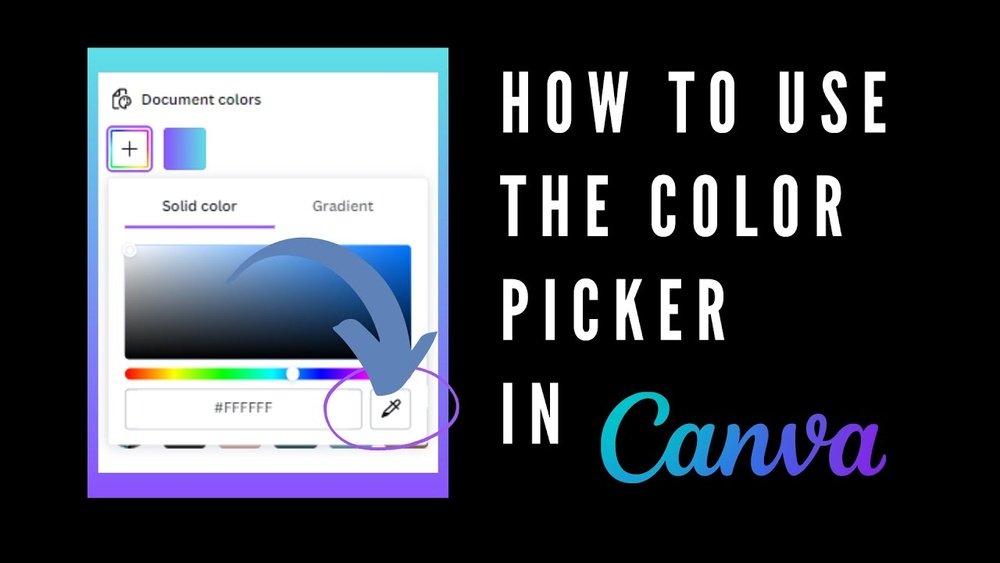
When you click it, a color menu will open. Here, you will see the Color Dropper tool.
Steps To Find Color Dropper:
- Open your design in Canva on PC.
- Select the element you want to change color for.
- Click on the color box in the top menu or side panel.
- Click the Color Dropper icon (looks like an eyedropper tool).
Now you are ready to pick any color from your design or screen.
How to Use Color Dropper in Canva PC Step by Step
Using the Color Dropper is simple. Follow these steps carefully.
Step 1: Open Your Design
First, open Canva on your PC. Then, open your design or create a new one. You must have something to work on.
Step 2: Select An Element
Click on the element you want to change the color of. It could be text, shape, or background. This tells Canva what part you want to color.
Step 3: Open The Color Menu
Click on the color box. This is usually above the design area or on the side. It shows the current color of the element.
Step 4: Click The Color Dropper Tool
In the color menu, find the Color Dropper icon. It looks like an eyedropper. Click on it. The mouse pointer will change to the dropper shape.
Step 5: Pick The Color
Move your mouse over the image or design. You will see a small preview of the color under your pointer. Click on the color you want to pick.
Canva will change your selected element’s color to this new color.
Step 6: Finish And Save
After picking the color, the Color Dropper tool will close. You can continue editing or save your design.
Tips for Using Color Dropper Effectively
- Zoom in on the image to pick colors more precisely.
- Use the Color Dropper on any visible part of your screen.
- If you pick the wrong color, undo the action with Ctrl+Z.
- Try to pick colors from the main parts of images for better matching.
- You can pick colors from photos, shapes, or even your background.
Examples of Using Color Dropper in Canva
Here are some ideas where Color Dropper helps:
| Use Case | How Color Dropper Helps |
|---|---|
| Matching Text Color to Image | Pick color from the image and apply it to text for harmony. |
| Brand Colors | Pick exact brand colors from a logo or image to stay consistent. |
| Creating Color Palettes | Pick multiple colors from an image to create a palette for your design. |
| Background Color Matching | Pick a color from an element to match the background color perfectly. |
What to Do if You Can’t Find the Color Dropper Tool?
Sometimes, you may not see the Color Dropper tool. Here is what to check:
- Make sure you are using Canva on a PC, not a mobile app.
- Update Canva to the latest version in your browser.
- Try refreshing the page or restarting your browser.
- Check that you have selected an element that supports color changes.
If you still cannot see it, try using the color codes manually or use another browser.
Credit: www.canva.dev
Benefits of Using the Color Dropper in Canva
The Color Dropper tool has many benefits. Here are some:
- Accuracy: Pick the exact color you want without guessing.
- Speed: Save time by quickly matching colors in your design.
- Consistency: Keep the same colors across your project easily.
- Creativity: Experiment with colors from images and photos.
Final Words
Using the Color Dropper tool on Canva PC is easy. It helps you pick colors from any image or design. You only need to select your element, open the color menu, and click the dropper. Then pick the color you want. This makes your designs look better and more professional.
Try it today in your next Canva project. It will help you create beautiful and color-matched designs fast.
Frequently Asked Questions
What Is The Color Dropper Tool On Canva Pc?
The Color Dropper picks colors from any image or design on Canva PC.
How Do I Activate The Color Dropper In Canva Pc?
Click on the color icon, then select the Color Dropper tool to start.
Can I Use Color Dropper For Text Colors In Canva Pc?
Yes, you can sample and apply colors to text using the Color Dropper.
Does Color Dropper Work With Uploaded Images On Canva Pc?
Yes, the tool works with both Canva images and your uploaded pictures.